
OBS Studio plugin
Launch Desk OBS
Launch Desk OBS starts the selected app set when OBS opens. It detects Reward Desk, Shoutout Desk, Dudos Desk and Command Desk, and supports custom EXE files and Windows shortcuts with arguments and a working folder. Create, clone, rename and delete sets. Switching sets does not start or stop apps: the selection applies on the next OBS launch.
Requirements: Windows 10/11 x64 · OBS Studio 32+ with Qt 6.8+ · Reward Desk 0.10.2+ and/or Shoutout Desk 0.7.1+ · Dudos Desk · Command Desk 0.3.1+
Direct downloads from GitHub Releases. Windows x64.
Screenshots
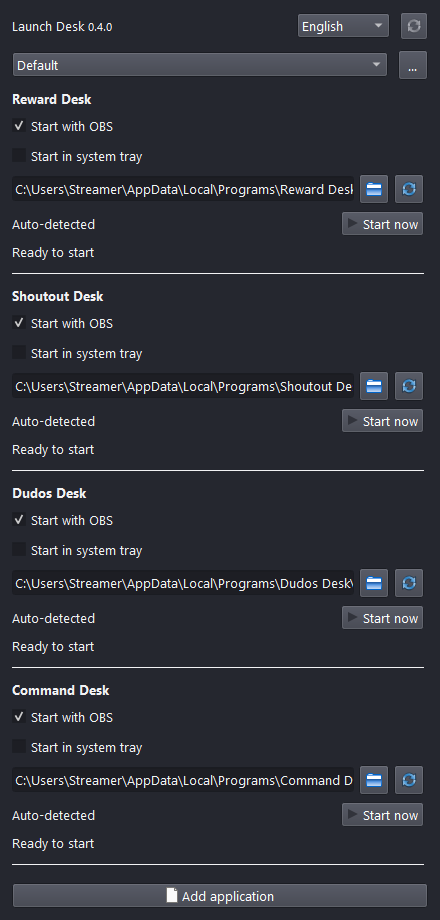
Screenshots use demo accounts. Downloads contain no personal databases. The local badge editor is currently in Russian; badge text can use your own language.
What it does
- Start Reward Desk, Shoutout Desk, Dudos Desk and Command Desk with OBS, independently.
- Detect installed apps or manually select their executables.
- Running-process checks prevent duplicate or alternate-copy launches.
- No Twitch login, web server, telemetry or app database access.
- Closing OBS does not close apps; scenes and streaming stay untouched.
- Choose normal window or system tray separately for each app. Updates preserve the previous behavior until you change the checkbox.
Installation
- Set up your apps normally. This plugin does not install or sign in to them.
- Close OBS completely and run the EXE installer. Setup never closes apps or interrupts streaming.
- Open OBS → Docks → Launch Desk. Check detected paths or choose an EXE manually with the folder button.
- Create a startup set. Add custom apps using an EXE or Windows shortcut, with optional arguments and a working folder.
- Enable Start with OBS separately for apps in the selected set. New entries are disabled by default. Changes are saved immediately and take effect on the next OBS start.
- Use Start now to test without restarting OBS.
ZIP for manual installation
Close all OBS instances first. Do not copy additional Qt DLLs.
- Installed OBS: copy the launch-desk-obs folder from ZIP into %PROGRAMDATA%\obs-studio\plugins\.
- Portable OBS with portable_mode.txt: copy launch-desk-obs/bin/64bit/launch-desk-obs.dll into <OBS>/obs-plugins/64bit/.
Settings and controls
| Setting | What it does |
|---|---|
| Start with OBS | Separate switch for each app. Starts after OBS loads, even when the dock is hidden. |
| Start in system tray | Choose independently: checked starts with only the tray icon, unchecked opens the normal window. Also applies to Start now; already running windows are never hidden. |
| Folder | Select an app EXE manually. After moving a portable folder, select its new path. |
| Auto-detection | Checks the registered and standard Windows installation each time OBS opens. |
| Start now | Launch without restarting OBS. Running processes and other copies are skipped. |
| Language | English, Ukrainian and Russian; the dock follows the OBS theme. |
Update without losing your data
The plugin notifies you about stable updates without installing them automatically. Close OBS and install the newer EXE over the previous version, or replace the DLL from ZIP. Startup sets and settings are preserved, with a backup before migration. App data and Twitch sign-in are not changed.
Data and security
%LOCALAPPDATA%\Launch Desk OBS\settings.json
Verify your download
Builds are not code-signed, so Windows may show a reputation warning. Verify the source and SHA256 checksums; do not disable system protection.
Compare your downloaded file’s hash with the published value. The links beside each hash open the release checksum files.