



Shoutout Desk OBS
Requirements: Windows 10/11, x64. OBS Studio 32+ with Qt 6.8+ within Qt 6.
Direct downloads from GitHub Releases. Windows x64.
Coming from an old version? Import your database
Screenshots
What it does
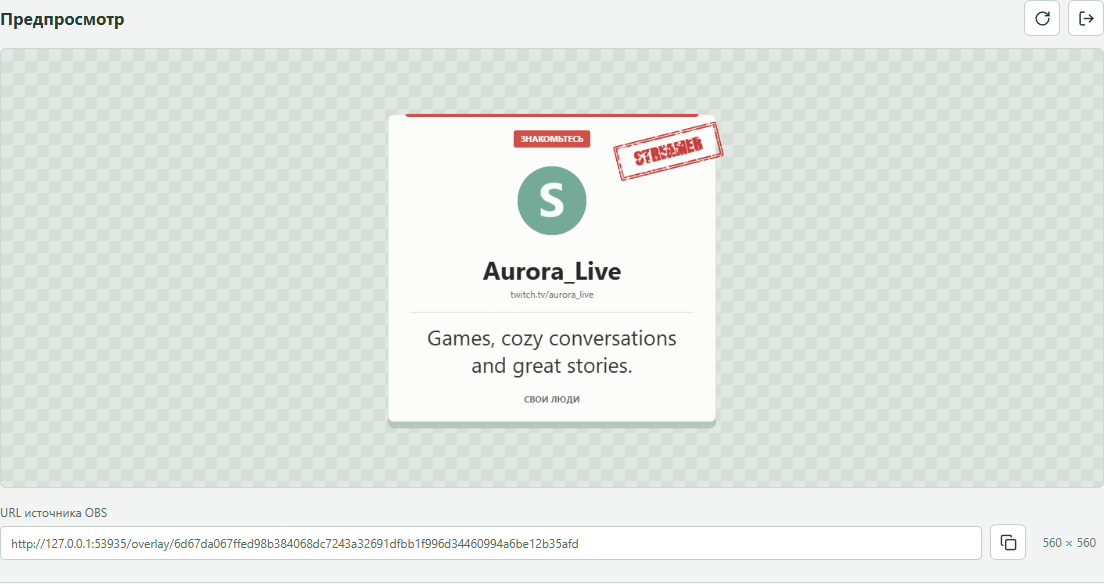
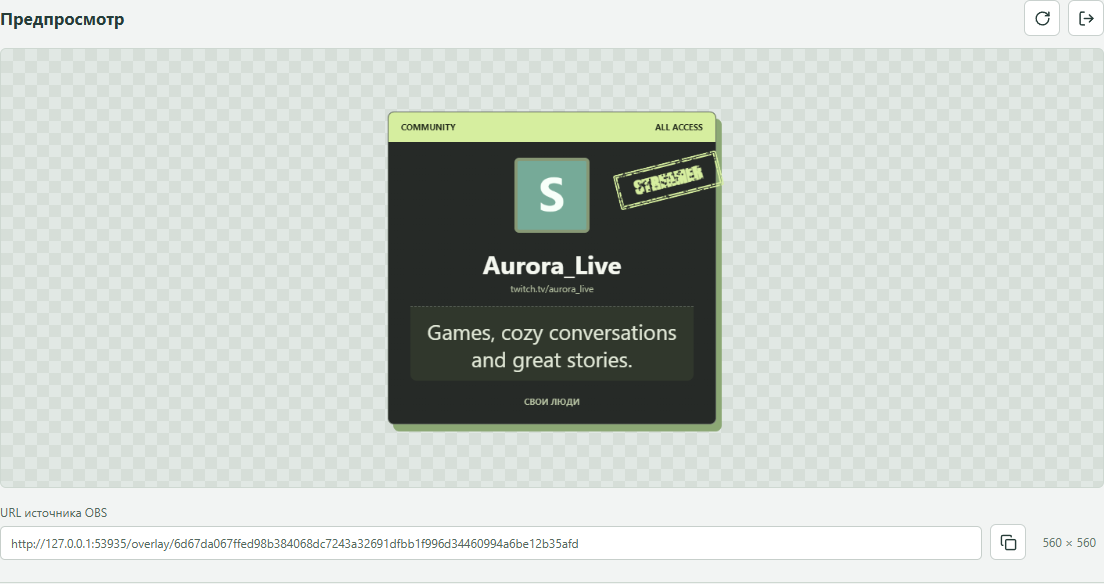
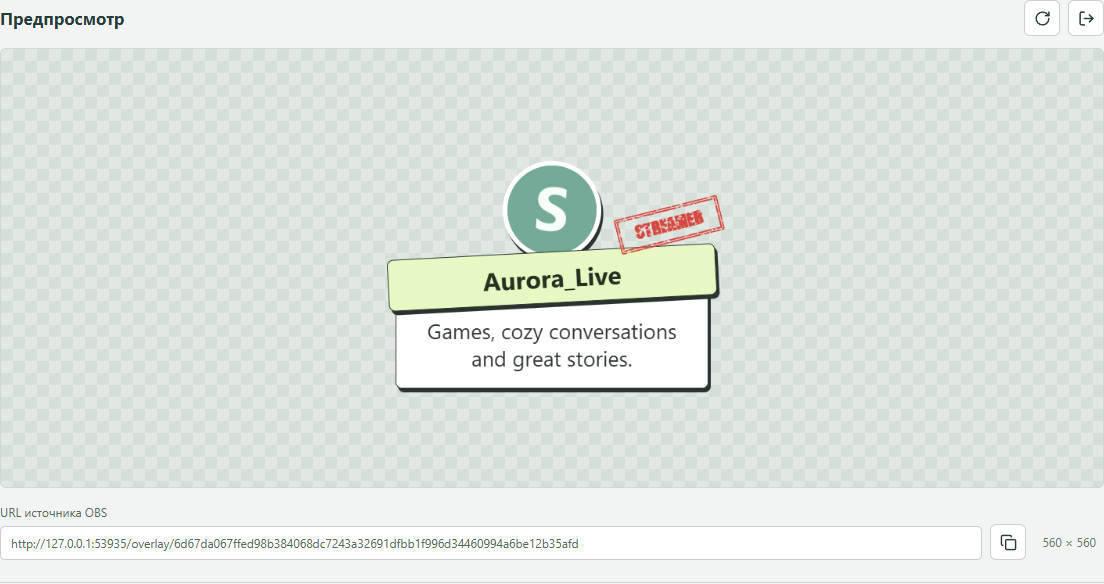
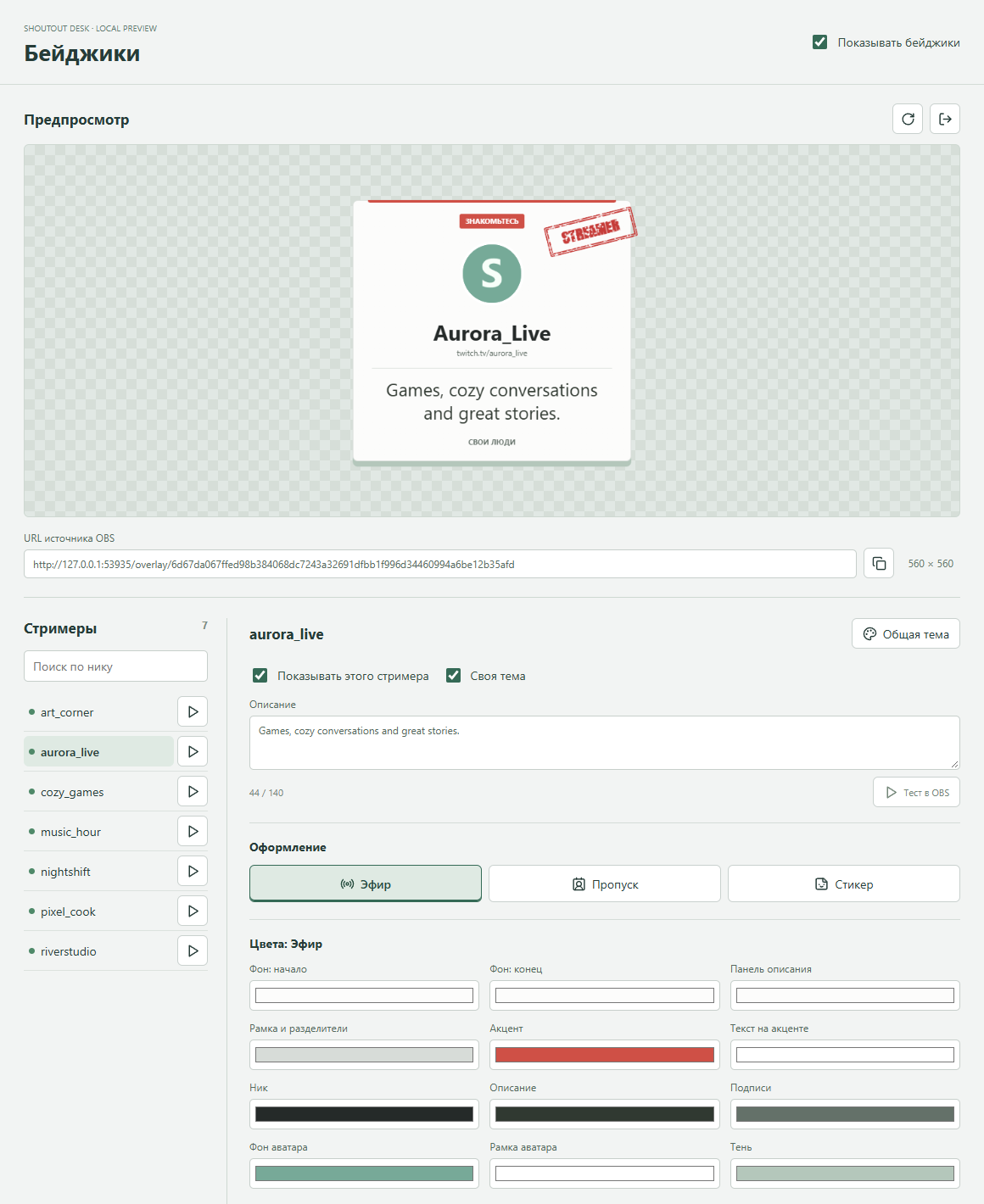
- OBS shoutout badges with an avatar, nickname and personal description. Three designs with independent colors: Air, Pass and Sticker.
- Customizable stamp, gradients, sizes and ten entrance/exit effects each. Test each badge without sending a Twitch shoutout.
- Send a private diagnostic report for the last hour, day or week, without tokens or chat text.
- Shouts out a person on your list after a new chat message, once their personal cooldown has expired.
- Keeps people, history and cooldowns across restarts. Each channel has separate data.
- Connects directly to Twitch or through an automatic Streamer.bot setup.
- Uses received shoutout events from other bots to cancel duplicates in the queue.
- Imports and exports people and history, with optional manual cooldown resets.
- Available in English, Ukrainian and Russian. Checks for new releases automatically or with a button.
- Optionally shouts out incoming raiders after 20 seconds, including people outside the list. An observed shoutout from another bot cancels the duplicate.
Installation
- Download the EXE and fully close OBS.
- Run the installer and approve administrator access. Select your OBS folder if needed.
- Open OBS with your usual shortcut, then select “Docks → Shoutout Desk”. Set up a connection below.
First connection
Directly to Twitch
Choose “Direct Twitch / Standalone”, select “Sign in with Twitch” and confirm the code on the official Twitch page using your broadcaster account. You do not need to register a separate Twitch application. Sign-in renews automatically: temporary network or Twitch failures do not require another login.
Through Streamer.bot
Connect your broadcaster account to Twitch in Streamer.bot 1.0.7. Select this connection mode in settings and click “Set up Streamer.bot”. A running bot is detected automatically, or you can select its EXE. If asked to close the bot, exit it from the tray and repeat setup; it will start again afterwards. OBS can stay open. The bot’s settings are backed up before changes.
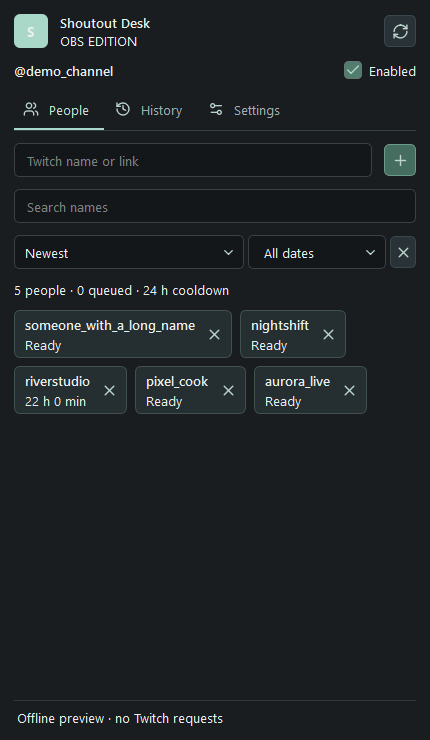
Add Twitch usernames or profile links, choose a cooldown and leave auto-shoutouts enabled. During a live stream, a new message from a listed person can queue a shoutout once their cooldown expires. The tool never starts your stream.
Settings and controls
| Setting | What it does |
|---|---|
| Badges → OBS source | Open Badges, copy the complete source URL and add an OBS Browser Source sized 560 × 560 with a transparent background. Keep the app/plugin running: desktop port 18771, plugin port 18772. The URL stays stable across restarts in the same profile. Do not use the editor URL as the source. |
| Description, theme and stamp | Enable display globally or per person. Add a description up to 140 characters, select a common or personal theme, edit independent colors for all three designs, fonts, padding, border and gradient. Customize stamp text, color, angle, corner and sizes. Long names shrink to one line; descriptions wrap. Click Save after editing. |
| Badge test and updates | A test displays only a badge and never changes history/cooldowns, even with automatic display disabled. Choose entrance and exit independently from ten effects each. The editor currently uses Russian labels. Streamer.bot users should rerun bridge setup for avatars. Preserve the complete profile when moving: the people-list JSON export does not include badge settings. |
| Send logs | Settings → Diagnostics: choose the last hour, 24 hours or 7 days, confirm sending and give the report reference to the maintainer. Channel name, version, state and pseudonymous queue events are visible only to the fermionaplay.win owner for 30 days. Detailed logs start after the update; earlier history may be incomplete. Nothing is sent automatically. |
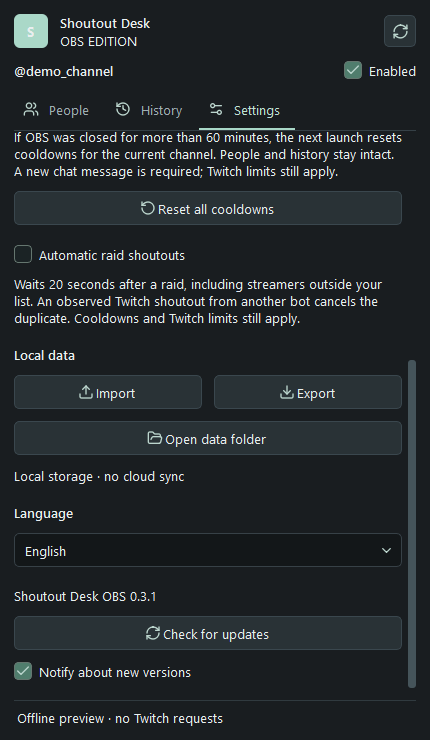
| Automatic raid shoutouts | Off by default. Incoming raids during a live stream wait at least 20 seconds. Raiders are not added to your list; cooldowns and limits still apply. Only actual Twitch shoutouts count, not text-only !so messages. |
| Notify about new versions | On by default. Checks about 15 seconds after launch, then at most daily after success. Offline checks retry later. Shows a release banner without automatic downloads or installation. |
| Enabled | Pauses or resumes auto-shoutouts. Enabled again at every startup, without clearing saved cooldowns. |
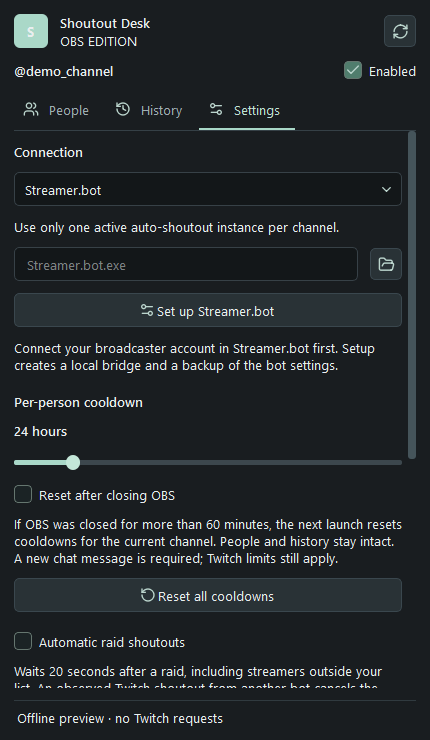
| Cooldown, 1–168 hours | The interval for each person. Default: 24 hours. A new chat message is required after it expires; there is no automatic bulk sending. |
| Reset after a long closure | Off by default. Resets personal cooldowns on startup if the program was closed for strictly more than 60 minutes. Keeps history. A crash includes a 30-second heartbeat allowance. |
| Reset all cooldowns | Requires confirmation. Resets the current channel’s cooldowns and clears the queue, keeping people and history. Twitch limits still apply. |
| Connection mode / Sign in / Sign out | Direct Twitch or Streamer.bot. Signing out removes saved sign-in, not people or history. Other channels have separate databases. |
| Set up Streamer.bot | Creates a local bridge and a backup of actions/settings. Preserves the existing port, password and other actions. Desktop and OBS bridge settings are independent. |
| Reconnect | Restores the selected connection. Does not replay old messages or reset cooldowns. |
| Add / remove | Accepts a Twitch username or profile link. Removing a person keeps their history and cooldown. Duplicates are merged. |
| Search / sort / date | Only filter the displayed list, not who is eligible for auto-shoutouts. |
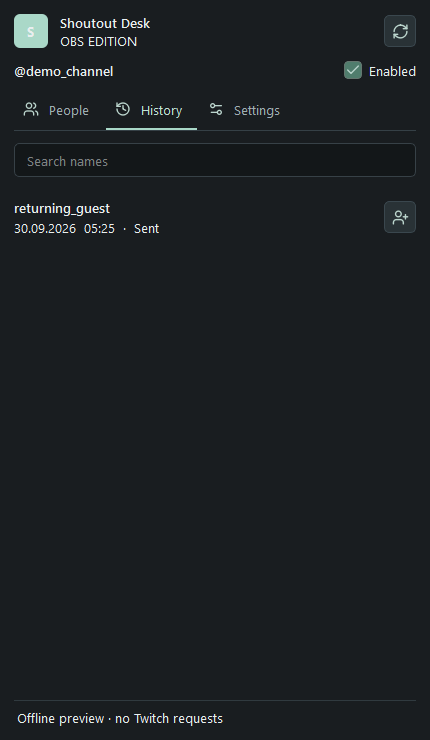
| History / Add | Shows outcomes and errors. Add someone back from history without sending a shoutout. |
| Import | Merges a JSON export or legacy shoutouts.sqlite for the same channel. Connect first. Creates a backup and pauses auto-shoutouts. Close the source program before copying SQLite. |
| Export / Data folder | Exports people, history and cooldowns as JSON, without tokens or passwords. Data folder opens the local profile and backups; do not publish its contents. |
| Language | English, Ukrainian and Russian. Some diagnostic messages may remain in Russian. |
| Check for updates | Manually checks GitHub releases and offers a download link. No silent installation; Twitch tokens are never sent to GitHub. |
| Queue and recovery | The dock shows the next person and minimum waiting time. Brief disconnects preserve the queue in the same broadcast; temporary failures before sending can retry. An already sent request with an unknown outcome is not duplicated. The minimum 125-second channel gap still applies; history shows reasons for skipped entries. A new broadcast, pause or manual reconnect clears the queue. |
| Twitch confirmations in history | History also shows previously stored Twitch events marked "Confirmed by Twitch". Another tool may have sent these shoutouts, rather than this plugin. Matching confirmations of successful local attempts are not duplicated. |
| Local worker unavailable | The dock automatically tries to recover its worker up to three times, retaining the session pause. If recovery fails, close OBS and reinstall the full EXE or ZIP without deleting the data folder. Do not disable antivirus protection. The data folder contains worker-process.log and, when available, worker-diagnostic.log with no tokens or passwords. Share only these logs for troubleshooting, not the database or sign-in files. |
| Sign-in notification | When Twitch confirms invalid authorization, a separate non-blocking warning appears even with the dock hidden. “Open settings” reveals the sign-in controls; “Later” dismisses the warning until the next launch or a new authorization failure. OBS keeps working. Normal token renewal and network outages do not show this dialog. |
| Dock / undock | Toggles between floating and docked. Drag the panel to an OBS edge to dock it; OBS manages its visibility and position. |
“Sent” means Twitch confirmed the shoutout; “Queued / Sending” means pending; “Skipped” means cancelled; “Error” means rejected. “No confirmation” blocks a retry for the personal cooldown. A 10-second grace period lets other bots’ events arrive; channel-wide shoutouts are spaced 125 seconds apart.
Update without losing your data
Older versions do not have notifications yet: update once manually. Future versions will then be announced automatically when the option is enabled.
Click “Check for updates”, close OBS and run the new installer. The regular profile, including people, history and protected sign-in, is preserved. Uninstalling the plugin does not delete it.
%LOCALAPPDATA%\Shoutout Desk OBSZIP and portable data
Manual installation and support for portable OBS.
- Extract the entire ZIP. With regular OBS closed, run Install.cmd as administrator.
- For portable OBS, first create an empty portable_mode.txt in its root folder. Run Install-Portable.cmd and select that copy’s bin\64bit\obs64.exe.
- Its profile lives in config\shoutout-desk-obs inside portable OBS. Repeat installation to update and keep the config folder. Do not install global and manual plugin copies for the same OBS.
Coming from an old version? Import your database
Installing over the old version in the same profile needs no import. To change profiles, computers or move from the app to the plugin:
- The first standalone version stores the people list in %APPDATA%\Shoutout Desk\shoutouts.sqlite. Press Win + R, enter %APPDATA%\Shoutout Desk and open the folder.
- When launched through Portable.cmd, look for ShoutoutDesk-data\shoutouts.sqlite beside the EXE. Settings → Data folder also opens the exact location; save a JSON export if Export is available.
- Close the old app using Exit in the system tray (close OBS for the plugin), then back up the entire data folder. Do not copy an open database without its WAL.
- Connect the same Twitch broadcaster account in the new version. In Settings → Import, select the JSON or shoutouts.sqlite, including databases from the earliest releases.
- People, history and cooldowns merge; unfinished requests are not replayed. Check the result and enable automation: importing pauses it.
Do not import connection.json, authorization files or an EXE. Tokens are not transferred; repeated imports do not duplicate the same history. Keep your backup: downgrading from database schema 3 requires a pre-upgrade copy.
Data and security
Auto-shoutouts run locally; no account on this website is needed. Sign-in happens on Twitch’s official page. OAuth tokens and bridge secrets are protected using Windows encryption. JSON exports contain usernames and activity times, so share them thoughtfully. Only after confirming Send logs does the site receive your channel name, version, state and pseudonymous events, without tokens, chat or the people database. Reports are private to the site owner and deleted after 30 days. Technical server logs may contain your IP address. Sign in to Twitch again when moving to another computer.
Builds are not code-signed, so Windows may show a reputation warning. Verify the source and SHA256 checksums; do not disable system protection.
SHA256 checksums
Compare your downloaded file’s hash with the published value. The links beside each hash open the release checksum files.
- EXE · SHA256
68d387883f4c56d3a3fd7520f52c65c843d02d4c6b6a3540936e8c582fbdc107- ZIP · SHA256
3ad8c21dfd67bcae6fe005f3ddc905371602a2ff54681df377192b68993730ef